I²C: Inter-Integrated Circuit Communication
The Cube supports I²C communication, allowing you to connect a wide range of external sensors like airspeed sensors, magnetometers, and rangefinders using a shared two-wire interface.
I²C ("Inter-Integrated Circuit") is a two-wire communication protocol that allows multiple digital devices to communicate over a shared bus.
It’s useful because it reduces wiring complexity and enables efficient communication between sensors, microcontrollers, and other peripherals.
If you're REALLY keen, the I²C specification can be found below, though it's not for the faint of heart (and entirely unnecessary for your work).
I2C documentation: I2C-bus specification and user manual (nxp.com)
I²C Bus Details
An I²C bus uses two data wires: SCL & SDA, which are a clock line and a data line respectively. The fact that I²C is a BUS means that many devices can be connected using the same SCL & SDA wires - each device only pays attention to transmissions that start with its unique address, and ignores everything else. Care must be taken to avoid address conflicts - every device on the I²C bus must have a different address, or the devices sharing an address will try to talk over each other, and everything will break.
The wiring of the bus itself is straightforward: connect the SCL line to the SCL pins and the SDA line to the SDA pins of all devices on the bus, as seen in Figure 1. If you're interfacing with the Cube's I²C bus, then that is it, other than connecting power to each device.
Warning if you venture beyond the Cube: if you try to use I²C with other devices such as a microcontroller, both the SDA and SCL lines will require a "pull-up resistor", placed between the lines and the power (+5V or +3.3V) line. This is because I²C is an "open-drain" protocol - to communicate over the data lines, devices actively drive the line low (for a binary 0), and then release the line, whereby the pull-up resistors return the bus to a high state (for a binary 1). Again, if using the Cube, you can ignore this section - there is no need for dedicated external pull-up resistors as there are built-in ones in the flight controller.
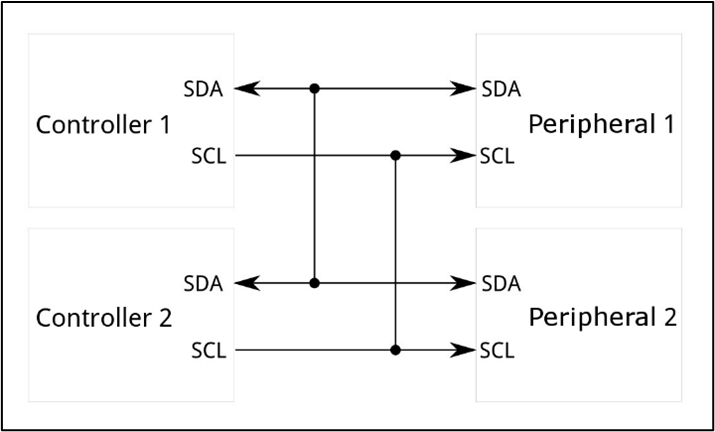
Mock-up of an I2C serial bus. Image credit (and a generally good resource for further learning): SparkFun I²C Tutorials
Wiring into the Cube's I²C Bus Ports
To interface with the Cube's I²C buses, you will need to use a 4-pin JST-GH connector, plugged into "I2C 2" on the Cube carrier board. Please see "Expert Links -> CubePilot pinout" for details of which pin is which. The I2C 2 port, confusingly, interfaces with the Cube's I²C bus 0. The Cube also has an I²C bus 1 and I²C bus 2. This is relevant when you come to Lua scripting.
Tip
The GPS 1 port has additional I²C lines (for the I²C bus 1) if you need more than one I²C bus. You only need to connect PWR, GND, SCL, and SDA from within the GPS port.
Using I²C: Lua Scripts
You will have to code a lua script file to talk to your external I²C devices. Most devices you will use, such as the DFRobot ADS1115 ADCs that you have been issued, come with a library/driver, which handles all of the low-level register reading and writing. This allows the user to more simply interface with the device. Unfortunately for you, these are almost always only available in C/C++, mostly within the Arduino framework - NOT in lua script.
It is possible to port a library/driver across to lua script by reading the driver and understanding which registers need to be read in what order to communicate with the device. This is not a trivial task; we have created a lua script port of the DFRobot ADS1115 ADC that you have been issued to speed you on your way. You can use this to log data from the ADC, but it may also be helpful if you try to port your own I²C device library. The code is well commented, so you can understand how bytes are read and written to and from the I²C bus. Here are the two main commands, extracted from the ADC library port, required to communicate over I²C:
1 | |
This tells the Cube to connect to a device on I²C bus 0 with the address ADS1115_I2C_ADDRESS (which is a hexadecimal value assigned earlier in the code - N.B. the ADC has two values, which you can swap between with the switch on the device). The variable ads1115 is then used for future communications.
1 | |
This tells the Cube to read 2 bytes from the ADS1115, from the register with the address in "reg". A write command works the same way, except that the first argument in the ads1115:transfer() function gives the register address, followed by the data bytes being written. The second argument is 0, as no bytes are being read:
1 2 | |
There is much more information available in the links provided, and elsewhere, on the I²C bus. Please ask questions in the sessions if you are having trouble.
DFRobot ADS1115 ADC Example Script
The following code can be uploaded to your Cube, following the steps in "06. Lua Scripts". It will, by default, record the voltages of all 4 ADC channels, once per second for a minute. It will output them in the "Messages" tab of Mission Planner and also save them to a .csv file in the Cube's root directory, which can be downloaded after data logging is completed. This is only a minimal working example - please feel free to edit it. You might want to change the data logging rate, which channels you care about, or perhaps you want to implement a way to extract the information from Mission Planner directly over Python, forgoing the need for .csv? Or perhaps you might want to implement an input that allows you to start and stop logging when you want to?
Please ask if the code is not working for you. The code follows:
1 2 3 4 5 6 7 8 9 10 11 12 13 14 15 16 17 18 19 20 21 22 23 24 25 26 27 28 29 30 31 32 33 34 35 36 37 38 39 40 41 42 43 44 45 46 47 48 49 50 51 52 53 54 55 56 57 58 59 60 61 62 63 64 65 66 67 68 69 70 71 72 73 74 75 76 77 78 79 80 81 82 83 84 85 86 87 88 89 90 91 92 93 94 95 96 97 98 99 100 101 102 103 104 105 106 107 108 109 110 111 112 113 114 115 116 117 118 119 120 121 122 123 124 125 126 127 128 129 130 131 132 133 134 135 136 137 138 139 140 141 142 143 144 145 146 147 148 149 150 | |