Controlling Servos Using a Lua Script
This page walks you through setting up your system so that you can control a servo from a Lua script running on the Cube. It assumes you can already move your servo from Mission Planner's Servo/Relay tab: if not, go back to Servos via Mission Planner first.
We'll use one of ArduPilot's own example scripts, servo_slew.lua. It moves a servo back and forth in a smooth sine wave, and it creates its own parameters so you can change how it moves from Mission Planner. The next page goes through how it works.
No arming needed
You don't need to arm the Cube for this. You do need to toggle the safety switch from the Ctrl+F menu, as on the previous page.
Why Lua?
ArduPilot and Mission Planner are pretty functional, but we're working a little 'off-design'. We're using a flight controller that expects to be, well, flying, and we're confusing it by not giving it a GPS signal, constraining some of its degrees of freedom in the tunnel, and asking it to do things that would probably be a bad idea in flight, such as positioning control surface servos directly by hand.
We can work around this using the built-in scripting functionality. The Cube supports Lua scripting (via ArduPilot), enabling onboard automation such as custom sensor logging, custom failsafes, LED behaviour, telemetry filtering, or mission logic, without modifying the firmware (which is a good idea for verification and certification of core flight functionality). Lua is a lightweight, high-level scripting language designed for embedded systems, which makes it ideal for writing custom logic directly on the Cube.
Don't be scared of Lua!
It's a strange programming language, but it's the only way to write onboard code for the Cube. You'll get used to it, don't worry.
ArduPilot's scripting pages:
- Lua scripts
- Script setup and use examples
- Script examples - really wide range
Enabling scripting
- Connect Mission Planner, and open the full parameter list: the
CONFIGtab, thenFull Parameter List. - Search for
SCR_ENABLEand set it to 1. - Write the parameters with
Write Params. - Reboot the Cube, with
reboot pixhawkin the Ctrl+F menu or with a power cycle.
Rebooting with scripting enabled creates a scripts folder inside the APM folder on the Cube's SD card. If it doesn't appear, create it yourself.
Uploading the script
The script, servo_slew.lua
- Open MAVFtp: the
CONFIGtab, thenMAVFtp. This lets you see the files on the Cube's SD card. -
Open the
scriptsfolder: open the top folder, which has no name, thenAPM, thenscripts.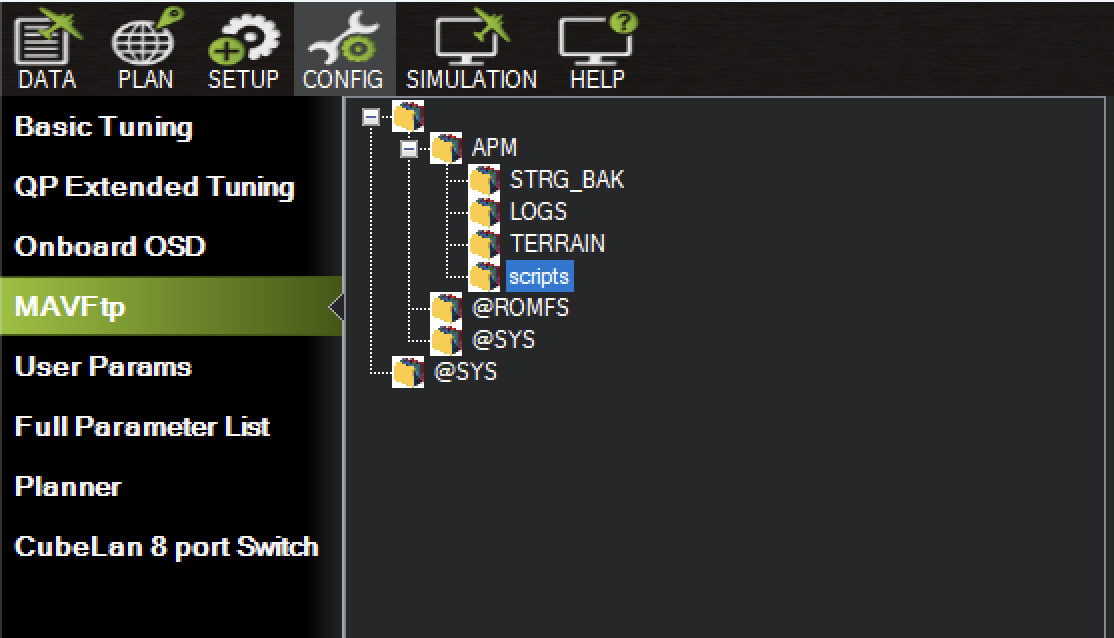
-
Upload the script: right-click in
scripts, chooseUpload, and findservo_slew.luaon your laptop. - Reboot the Cube. Scripts in
APM/scriptsstart automatically every time the Cube boots.
Setting the script's parameters
When the script runs for the first time it creates five new parameters, all starting with STEST_. To see them, go back to Full Parameter List and click Refresh Params, then search for STEST.
| Parameter | Default | What it does |
|---|---|---|
STEST_CHAN |
0 | The servo output the script drives. 0 means off. |
STEST_PCT |
100 | How far the servo swings, as a percentage of the full range. |
STEST_PWM_MIN |
1000 | The PWM signal at one end of the swing. |
STEST_PWM_MAX |
2000 | The PWM signal at the other end. |
STEST_FREQ |
1 | How many full swings per second. |
Set STEST_CHAN to 5, to match the MAIN OUT pins your servo is plugged into, and write the parameters. SERVO5_FUNCTION must still be 0, as on the previous page.
Mind the end stops
By default the script swings the servo across its full range. If your servo is fitted to a mechanism, that may drive it into the end of its travel and stall it. Reduce STEST_PCT, or bring STEST_PWM_MIN and STEST_PWM_MAX closer together, before you connect anything to the servo horn.
These parameters are saved on the Cube, so they survive reboots and edits to the script.
Watching it run
Toggle the safety switch: press Ctrl+F and click Toggle Saftey Switch. Your servo should now sweep back and forth, once a second.
Check the signal in Servo Output
SETUP › Mandatory Hardware › Servo Output shows the PWM signal on each output in its Position bar. With the default settings, output 5 should move through one full cycle between high and low every second.
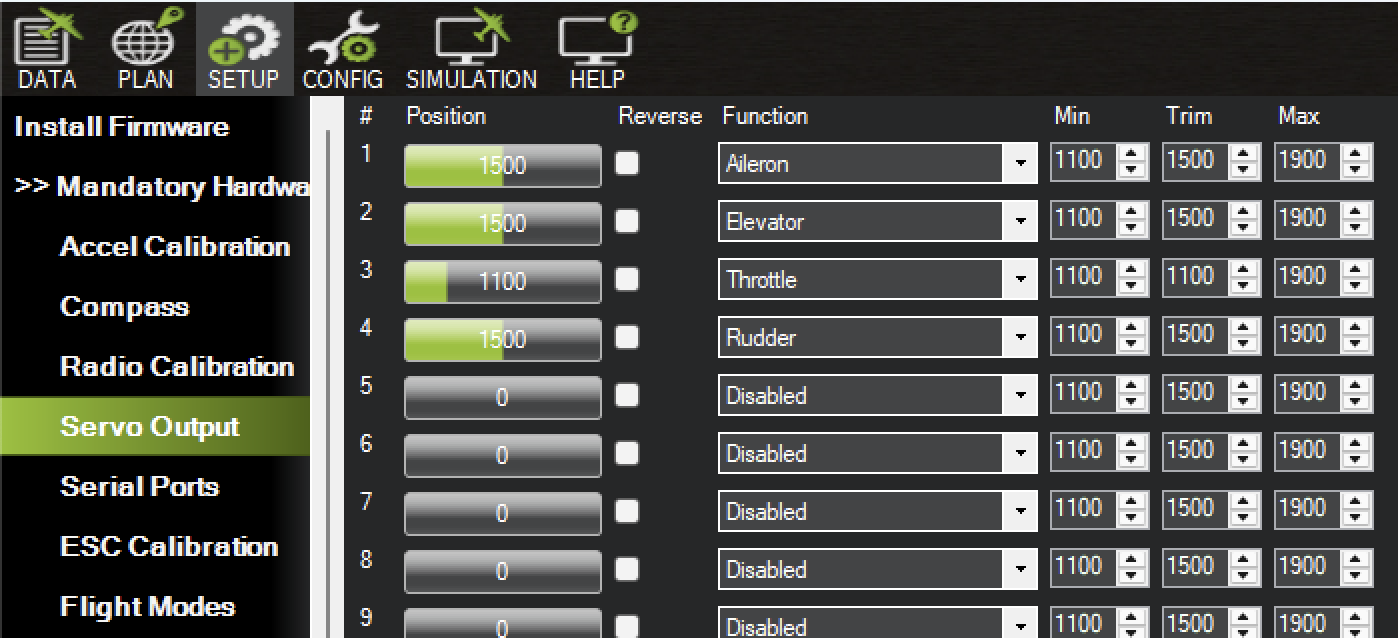
To stop the script moving the servo, set STEST_CHAN back to 0.
Troubleshooting
If the servo doesn't move, work through these in order.
- Check the servo moves from the Servo/Relay tab, as on the previous page. If it doesn't, the problem isn't the script: follow that page's troubleshooting.
- Check the script is running. Look in the
Messagestab, in the bottom left of theDATAtab, for any message mentioning Lua. An error there names the script and the line it failed on. - Check the
STEST_parameters exist. If they don't appear afterRefresh Params, the script hasn't run: checkSCR_ENABLEis 1, the file is inAPM/scripts, and you've rebooted since uploading it. - Check
STEST_CHANis 5 andSERVO5_FUNCTIONis 0. - Check the safety switch has been toggled since the last reboot.
- Check
Servo Output, as above. If output 5 is changing but the servo isn't moving, check the servo's wiring and power. - Try arming the Cube, as on the previous page.
Recap
SCR_ENABLE= 1, write the parameters, and reboot.- Upload
servo_slew.luatoAPM/scripts, and reboot. - Refresh the parameters, set
STEST_CHAN= 5, and write the parameters. - Toggle the safety switch.
- If it isn't working, check
Servo Output, then try arming.
Once your servo is moving under the script's control, head to the next page to see how the script works.